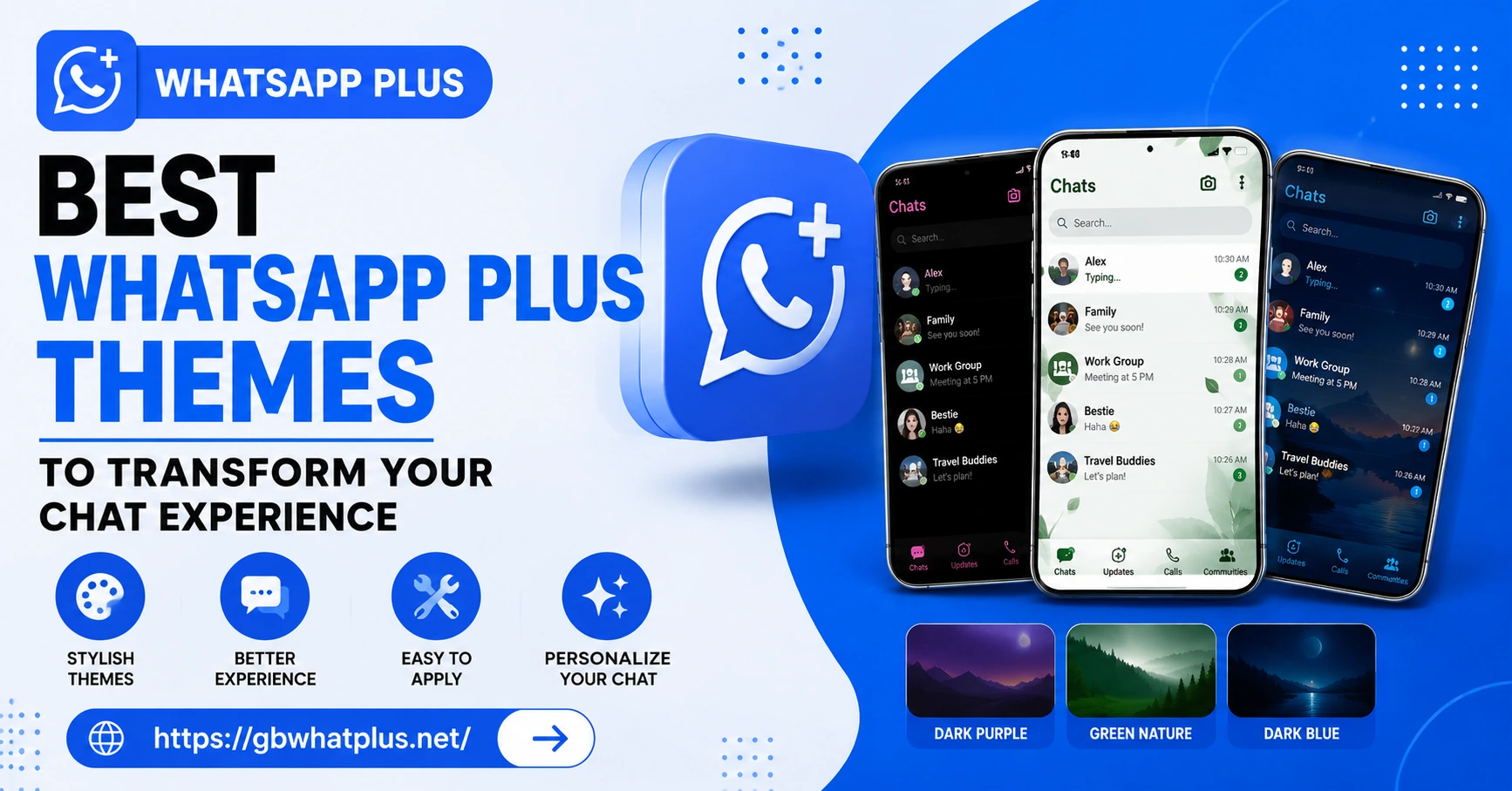
A messaging app is something you open dozens of times a day. The colors, fonts, and overall design shape how the experience feels every single time. The default green of WhatsApp is recognizable, but after a while, it can feel a little boring.

WhatsApp Plus comes with a theme engine that completely changes the way the app looks. You can pick from thousands of community made themes, or build your own from scratch. The result is a chat experience that matches your personality, mood, or even the season.
This guide walks you through the best themes available, how to install them safely, and how to create a chat environment you will genuinely enjoy opening.
Why Themes Matter More Than You Think
Visual customization is not just about looks. Studies show that people enjoy using tools more when they can personalize the appearance. The same message looks different in a clean dark theme compared to a bright pastel layout. You read it faster, feel calmer, and remember it better.
WhatsApp Plus takes this idea seriously. Its theme library is enormous, and the variety means there is something for every taste, whether you prefer minimalist black, vibrant gradients, or playful cartoon styles.
How to Access the Theme Library
Open WhatsApp Plus, tap the three-dot menu, and choose Plus Settings. Look for the Themes section. You will see several options:
- Download Themes: A library of community made themes you can browse and install.
- My Themes: A list of themes you have already saved on your device.
- Create Theme: A built-in editor for designing your own layout.
- Apply Theme: Activate any theme from your library with a single tap.
Spend a few minutes exploring each section. The library is regularly updated, so there is always something new to discover.
Top Themes Recommended by the Community
With thousands of themes available, picking the best one is not easy. Here are the styles that consistently get the most love from users:
Dark Elegance
A pure black background with subtle gray accents and white text. It is easy on the eyes, perfect for night use, and saves battery on phones with OLED screens. This theme is a favorite among users who prefer a professional look.
Pastel Dream
Soft pastel colors with rounded chat bubbles and gentle gradients. The friendly design feels warm without being childish, making it a great choice for users who want a calmer, more relaxed feel.
Ocean Blue
Inspired by deep sea tones, this theme features various shades of blue with bright white text. The cool color palette is refreshing, especially for users who spend long hours chatting.
Sunset Gradient
A bold mix of orange, pink, and purple. The warm gradients give the app a vibrant, energetic vibe. It is a popular choice for users who enjoy a more playful look.
Minimal Mono
A clean monochrome design with black, white, and shades of gray. Perfect for users who appreciate simplicity and want to focus on conversations without visual distractions.
Nature Green
Various shades of green inspired by forests and leaves. The natural tones feel refreshing and unique, especially for users who spend a lot of time outdoors.
How to Install a New Theme
Installing a theme takes only a few seconds:
- Open the Themes section in Plus Settings.
- Browse the available themes or use the search bar to find a specific style.
- Tap the theme preview to see a full screen view.
- If you like it, tap Download.
- Once the download is complete, tap Apply.
The new theme takes effect immediately. You can switch back to the default or any other theme at any time, so feel free to experiment.
Mixing and Matching Elements
Most users stick with one theme at a time, but WhatsApp Plus lets you go deeper. You can mix elements from different themes to create a unique look. For example, you can take the chat bubble style from one theme, the background from another, and the font from a third.
To do this, open the Create Theme editor. You will see separate sections for colors, bubbles, backgrounds, ticks, and fonts. Pick the pieces you like from different themes, save your creation, and apply it.
Building Your Own Theme From Scratch
If you want full creative control, the theme editor is a powerful tool. You can adjust every visual element of the app:
- Background color: Pick any shade from the color picker.
- Chat bubble colors: Choose separate colors for sent and received messages.
- Text color: Make sure your text is readable against the background.
- Font style: Pick from a list of installed fonts.
- Header style: Customize the top bar, including the status bar color.
- Tick colors: Choose the color of read and delivered ticks.
Once you finish, save your theme with a custom name. You can share it with friends or upload it to the community library for others to enjoy.
Keeping Themes Light for Performance
Some themes, especially those with detailed gradients and high resolution backgrounds, can slow down older phones. If you notice lag after installing a theme, switch to a simpler design. Most theme files are small, but a few heavy ones can be over ten megabytes.
You can also reduce the theme file size by choosing a smaller background image. The theme editor lets you crop or compress images before saving.
Seasonal and Mood Themes
Many users change their theme based on the season or their mood. A snowy white theme for winter, a bright floral theme for spring, a beach inspired theme for summer, and a warm orange theme for autumn. With WhatsApp Plus, switching takes only a few seconds, so you can match the chat experience to how you feel.
This is a small but powerful way to make the app feel fresh, even if you have been using it for years.
Safety Tips When Installing Themes
While most themes are safe, it is important to install only from trusted sources. Avoid themes from unknown websites, especially those that ask for personal data or request permission to access your contacts.
Stick to the built-in library or the official community forums where developers share verified themes. If a theme behaves strangely, uninstall it immediately and run a quick antivirus scan on your device.
Final Thoughts
A theme is more than decoration. It is how you make the app yours. With thousands of options and a powerful editor, WhatsApp Plus gives you the freedom to design a chat experience that feels right for you. Take a few minutes to explore the library, try a few styles, and find the one that makes you want to open the app just to look at it.
Frequently Asked Questions
Are WhatsApp Plus themes free? Yes, the vast majority of themes in the library are free. A few premium themes may charge a small fee, but free options are more than enough for most users.
Can I use multiple themes at the same time? No, only one theme can be active at a time. However, you can save multiple themes and switch between them whenever you want.
Will my theme stay after an app update? Yes, your installed themes are stored locally and will remain active after updating WhatsApp Plus, as long as you do not clear app data.
Can I share my custom theme with friends? Yes, you can export your theme and send it to friends. They can install it on their device with a single tap.
Do themes affect battery life? Heavy themes with bright backgrounds and animations can use slightly more battery. Dark themes tend to be the most battery friendly on OLED screens.