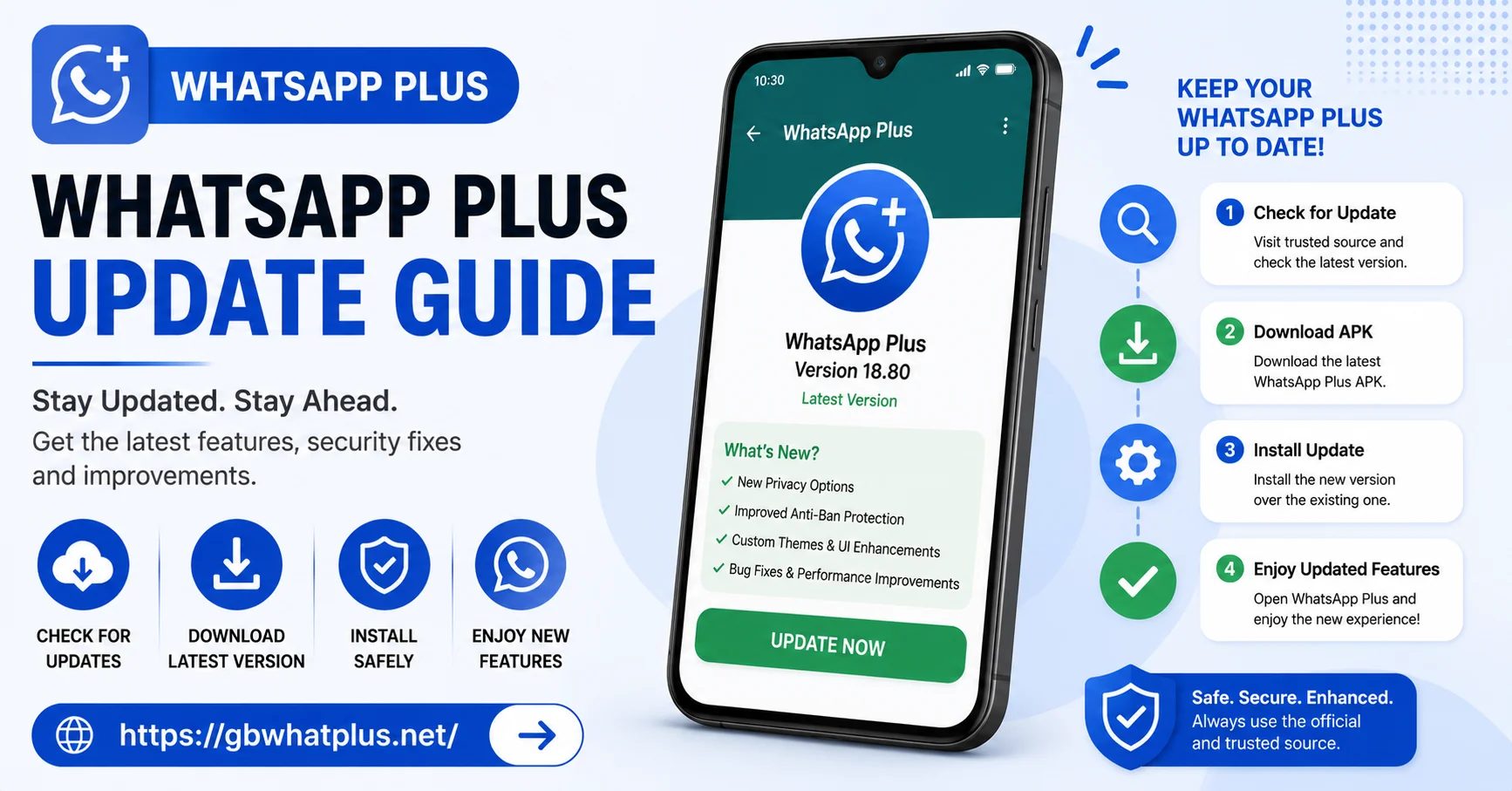
Updating an app is usually as simple as tapping a button. With WhatsApp Plus, the process takes a few extra steps because the app is not available on the Google Play Store. But with the right preparation, you can update smoothly without losing a single chat, photo, or setting.
This guide explains everything you need to know about updating WhatsApp Plus. Whether you are updating from a slightly older version or jumping across several releases, the steps below will help you do it safely.
Why Updating Is Important
Updates are not just about new features. They bring:
- Security patches that protect your chats.
- Bug fixes that improve stability.
- Compatibility updates that keep the app working with the latest Android versions.
- New themes, fonts, and customization options.
- Performance improvements that make the app faster and smoother.
Skipping updates may leave you with an app that works, but misses out on important fixes and features.
Before You Start: Create a Backup
The most important step before any update is creating a backup. This protects your chats, media, and settings in case something goes wrong.
To create a backup:
- Open WhatsApp Plus and tap the three-dot menu.
- Choose Plus Settings, then Chats, then Chat Backup.
- Tap Back Up Now for a local backup.
- If you use Google Drive, also tap Back Up to Google Drive.
Wait for both backups to finish before moving to the next step. The file sizes shown at the end of the process confirm that the backup includes your latest messages and media.
Check the Latest Version
Open your browser and visit the official source for WhatsApp Plus. Look for the latest version number, release date, and changelog. The changelog tells you what is new, what was fixed, and whether the update is safe for your device.
Compare the version number on the page with the version installed on your phone. You can find your current version by opening Plus Settings and tapping About. If your version is older, it is time to update.
Download the New Version
Tap the download link for the latest APK. The file is usually around fifty megabytes, so it downloads quickly even on slower networks. Avoid downloading from random links shared in groups or forums, as these may contain modified or harmful versions.
Enable Installation from Unknown Sources
If you have not installed an APK on your phone before, you may need to enable installation from unknown sources.
To do this:
- Open your phone Settings.
- Tap Security or Privacy, depending on your device.
- Find Install Unknown Apps or Unknown Sources.
- Choose the browser or file manager you used to download the APK.
- Toggle the permission on.
Once the app is installed, you can turn this setting off again for safety.
Install the Update
Open the downloaded APK file from your notification bar or file manager. Tap Install and wait for the process to complete. The installer will replace the old version with the new one, keeping your app data intact.
If you see a warning about an existing version, confirm that you want to update. The installer handles the upgrade automatically.
Verify and Restore if Needed
Open WhatsApp Plus after the installation completes. The app will recognize your existing data and load your chats, media, and settings without asking for verification in most cases. This is one of the best features of WhatsApp Plus updates. Your experience is uninterrupted.
If the app does ask for verification, enter your phone number. You will receive an SMS code, just like the first time you installed the app. Once verified, choose Restore when prompted to bring back your chats from the local backup.
What to Do if Your Chats Do Not Appear
Sometimes the restore process does not start automatically. This usually happens when the backup file is missing or the app data was cleared during the update.
To fix this:
- Open your file manager and check the WhatsApp folder in internal storage.
- Look for the Databases folder. The backup file should be there.
- If the file is missing, restore it from your Google Drive backup or copy it back from another location.
- Reopen WhatsApp Plus and try the restore again.
What to Do if the App Crashes After Updating
Crashes after an update are rare but possible. Most of the time, they are caused by leftover cache files from the older version.
To fix this:
- Open your phone Settings and go to Apps.
- Find WhatsApp Plus and tap Storage.
- Tap Clear Cache (not Clear Data).
- Reopen the app.
If the crash continues, restart your phone and try again.
Updating Across Major Versions
Sometimes the developer releases a major update that changes the app’s package name or signature. In these cases, a simple update may not be enough. You will need to uninstall the old version and install the new one.
Before doing this, make sure you have a backup. Then:
- Uninstall the current version of WhatsApp Plus.
- Restart your phone.
- Install the new APK.
- Verify your number and restore from backup.
Major updates like this only happen a few times a year, so do not worry about doing it often.
Scheduling Automatic Update Checks
If you often forget to check for updates, you can use a third-party app manager to receive notifications when a new version is available. These tools scan trusted sources periodically and alert you whenever a new build is published.
Some users also join the official Telegram or community groups where developers post update announcements. This is a quick way to stay informed.
Final Thoughts
Updating WhatsApp Plus does not have to be stressful. With a backup in place and a few simple steps, you can move to the latest version in just a few minutes. The new features, bug fixes, and security improvements are worth the small effort. Make updating a regular habit, and you will always have the best version of the app on your phone.
Frequently Asked Questions
Will I lose my chats if I update? No, updates preserve your chats and media. As long as you do not clear app data, everything stays intact.
How often is WhatsApp Plus updated? Updates are released regularly, often every few weeks. Major versions with new features come a few times a year.
Can I update without using a computer? Yes, the entire process works directly on your Android phone.
Do I need to re-verify my number after every update? Usually no. You only need to verify if the app was uninstalled or the data was cleared.
Where can I find the official download link? Visit the developer’s official website or trusted community forums. Avoid links from unknown sources.