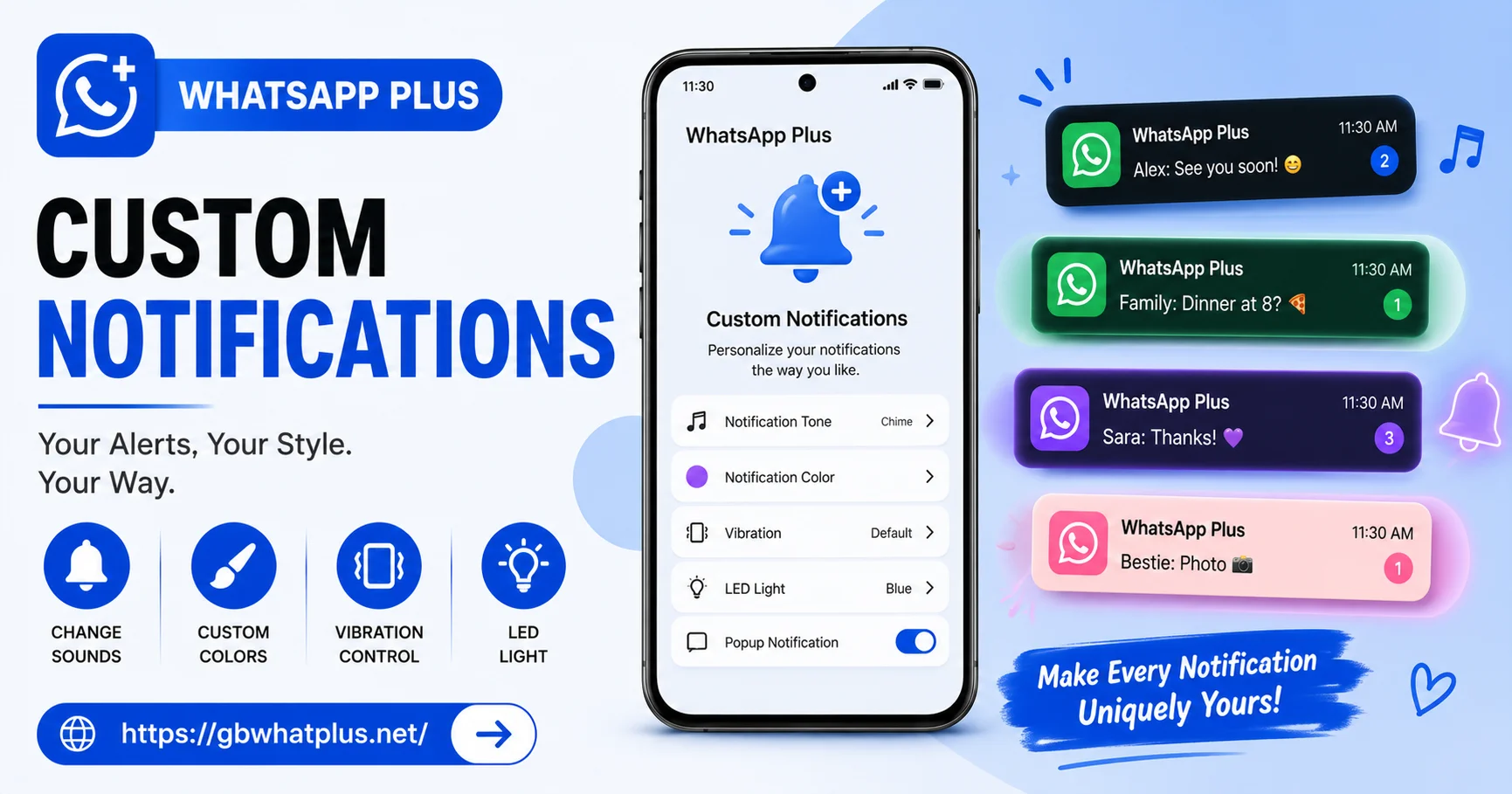
Notifications are the heartbeat of any messaging app. They tell you when someone reaches out, when a group is buzzing, when a deadline is near, or when a friend shares a memory. But when notifications become too loud, too frequent, or too repetitive, they stop being helpful and start becoming a source of stress.
The official WhatsApp gives you very limited control over notifications. You can change the tone, turn off group alerts, and maybe silence a chat, but that is about it. WhatsApp Plus flips the script. It hands you a full toolbox to design exactly how you want to be notified for every type of conversation.
This guide will show you every option available, how to set them up, and how to create a notification system that works for your lifestyle instead of against it.
Why Notification Customization Matters
Every person uses messaging apps differently. A freelancer needs instant alerts from clients. A parent wants to know the moment a child sends an SOS. A introvert might want to receive messages silently and check the app only twice a day.
The default notification system treats all these users the same. WhatsApp Plus understands that one size does not fit all. With its customization options, you can build a layered system that gives priority to what matters and silences what does not.
Getting Into the Notification Settings
Open WhatsApp Plus and tap the three-dot menu at the top right. Choose Plus Settings, then look for the Notifications section. You will see several categories, each controlling a different part of the experience. Spend a few minutes scrolling through so you understand the full list before making changes.
Setting Custom Tones for Individual Chats
One of the most loved features of WhatsApp Plus is the ability to set a custom notification tone for any contact or group. Imagine hearing a soft chime when your best friend messages, a distinct tone when your boss pings, and a quiet pop when a family group chats. You immediately know who is reaching out without even looking at your phone.
To set this up:
- Open the chat you want to customize.
- Tap the contact or group name at the top.
- Choose Custom Notifications from the menu.
- Toggle on the option and pick a tone from the list.
You can choose from any audio file on your phone, including your music library. This means unlimited tone options, not just the few dozen built-in sounds.
Using LED Colors for Visual Alerts
If your phone has an LED notification light, WhatsApp Plus lets you assign a different color to each contact. This is a subtle but powerful feature, especially in noisy environments where you cannot hear the tone but can see the flash.
Set red for work contacts, blue for family, green for friends, and yellow for groups. When your phone sits on the table, the flashing color tells you exactly who is trying to reach you, even on silent mode.
Choosing Notification Length and Pattern
The official app gives you one notification pattern: a single ping. WhatsApp Plus offers several variations:
- Single ping: Standard one-time alert.
- Continuous vibration: Phone keeps vibrating until you check the message.
- Repeated ping: Tone plays three or four times in a row for important contacts.
- Silent pop-up only: No sound or vibration, just a small text banner at the top of the screen.
This flexibility helps you create urgency where it matters. For example, set continuous vibration for emergency contacts so you never miss a real alert.
Hiding Sensitive Content on the Lock Screen
Privacy and notifications often collide. You do not want everyone who glances at your phone to see the content of every message. WhatsApp Plus gives you full control here.
Inside the notification settings, you can:
- Hide message previews completely.
- Show only the sender name without any text.
- Show previews for selected contacts while hiding them for everyone else.
- Force notifications to stay private even when the phone is unlocked.
This is perfect for users who work in shared spaces, take public transport, or simply value discretion.
Group Notification Management
Groups can be the loudest part of any messaging app. A single active group can generate dozens of notifications in an hour, drowning out personal messages. WhatsApp Plus offers several tools to manage this:
- Mute groups for custom durations: Pick any time period, from one hour to one year.
- Hide group previews: Show only the group name and message count, not the actual content.
- Group notification priority: Send group alerts at a lower priority so they appear below personal messages in your notification list.
- Mention-only alerts: Get notified only when someone mentions you by name, even in a busy group.
The mention-only option is a game changer for large work groups. Instead of getting pinged for every reply, you only hear about messages where your name appears.
Smart Notification Filters
One of the most advanced features in WhatsApp Plus is the ability to set smart filters. You can create rules that automatically adjust notifications based on time, contact, or content.
For example:
- Silence all notifications between 11 PM and 7 AM except for starred contacts.
- Mute all unknown numbers automatically.
- Allow only messages containing specific keywords to break through silent mode.
- Send marketing or spam chats to a separate quiet inbox.
These rules run quietly in the background. Once set up, you do not need to think about them. Your phone behaves the way you want, every hour of the day.
Vibration Patterns You Can Actually Feel
Vibration is another area where WhatsApp Plus goes beyond the basics. You can choose from dozens of vibration patterns, ranging from a single pulse to a long rhythmic buzz. Some users even sync the vibration to match the notification tone, creating a more immersive feel.
For users with hearing difficulties, custom vibration patterns can make a huge difference. A long heavy buzz for important contacts and a short tap for casual chats gives you instant feedback through touch alone.
Notification Light and Screen Wake
Beyond the LED, you can also choose whether the screen should wake up when a new message arrives. If you get too many messages, having the screen light up constantly drains your battery and distracts you.
Turn off the screen wake option for casual contacts and keep it on for priority chats. This way your phone stays dark for unimportant messages but lights up the moment someone important reaches out.
Auto-Silence During Meetings or Sleep
If you often forget to mute your phone before meetings, the scheduling feature in WhatsApp Plus can save you. Set a daily schedule during which all notifications are silenced automatically. You can allow exceptions for starred contacts, so urgent calls from family still come through.
Combined with the smart filters, this creates a fully automated notification system that requires zero daily tweaking.
Final Thoughts
Notifications should serve you, not stress you. With WhatsApp Plus, you have the power to design a system that respects your time, your priorities, and your personal style. Spend an afternoon exploring the options, set up the rules that match your routine, and enjoy a calmer, more focused messaging experience.
Frequently Asked Questions
Can I set different tones for individual contacts? Yes, WhatsApp Plus allows you to assign a custom tone to any contact or group without affecting the others.
Will my custom notification settings work after I update the app? Yes, the settings are stored locally and will be preserved across updates as long as you do not clear app data.
Can I hide message content from the lock screen? Yes, you can hide previews completely, show only the sender name, or choose a per-contact setting for full control.
Does the LED color feature work on all Android phones? It works on devices that have a physical notification LED. Phones without one will rely on the screen flash feature instead.
Can I schedule silent hours for specific days only? Yes, you can set different schedules for weekdays and weekends, perfect for users with varying routines.